An authenticator is a mobile application that generates a time-based one-time passcode used to access your account. Google Authenticator and Microsoft Authenticator are examples or authenticator apps. You can use an authenticator app as a Multi-Factor Authentication (MFA) option to protect your Trimble account.
Setting Up an Authenticator App
If you choose to protect your account with an authenticator app, follow these steps:
- Download the authenticator app you wish to use.
- Go to myprofile.trimble.com and sign in using your Trimble ID.
On your profile page, select Authenticator App. A screen with a QR code will appear.
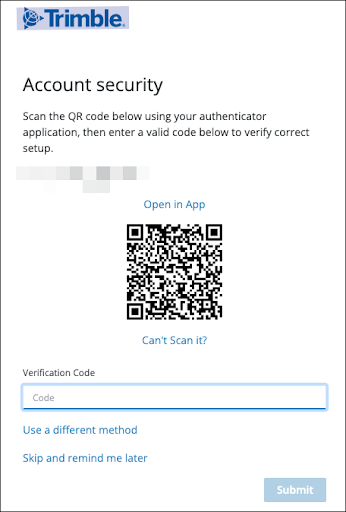
- Open your authenticator app and scan the QR code or select Can’t Scan It? for a code you can enter. The authenticator app will generate a code for your Trimble account.
- Enter the code provided by your authenticator app.
- Select Submit.
Logging In with an Authenticator App
After setting up an authenticator app as your MFA method, login using the following steps:
- Enter your email address and password and select Next.
Trimble will send a request to your authenticator app, generating a time-based one-time passcode.
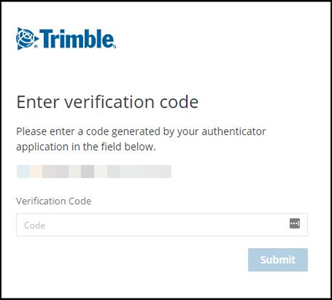
- Enter the passcode and select Submit.
To change your MFA method, open My Profile and navigate to the Multi-Factor Authentication section. For more information, see Adding or Disabling Multi-Factor Authentication.