Pour accéder à votre compte, vous pouvez utiliser une application mobile qui génère un code d'accès à usage unique basé sur le temps, comme Google Authenticator ou Microsoft Authenticator. Ces applications d'authentification sont une option d'authentification multifacteur (MFA) visant à protéger votre compte Trimble.
Configurer une application d'authentification
Si vous choisissez de protéger votre compte à l'aide d'une application d'authentification, procédez comme suit :
- Téléchargez l'application d'authentification que vous souhaitez utiliser.
- Accédez à myprofile.trimble.com et connectez-vous à l'aide de votre Trimble ID.
Sur votre page de profil, sélectionnez Authenticator App (Application d'authentification). Un écran contenant un code QR s'affiche.
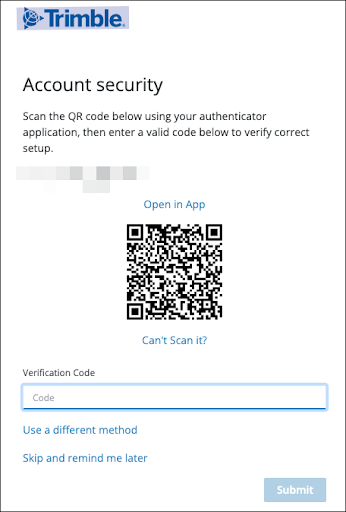
- Ouvrez votre application d'authentification et scannez le code QR ou sélectionnez Can't Scan It? (Scan impossible ?) pour obtenir un code de vérification à saisir. L'application d'authentification génère alors un code pour votre compte Trimble.
- Saisissez le code fourni par votre application d'authentification.
- Sélectionnez Submit (Envoyer).
Se connecter avec une application d'authentification
Après avoir configuré une application d'authentification comme méthode MFA, connectez-vous en procédant comme suit :
- Saisissez votre adresse électronique et votre mot de passe, puis sélectionnez Next (Suivant).
Une demande est envoyée à votre application d'authentification, qui génère un code d'accès à usage unique basé sur le temps.
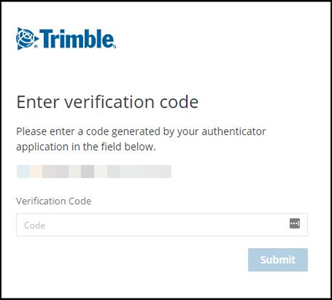
- Saisissez le code et cliquez sur Submit (Envoyer).