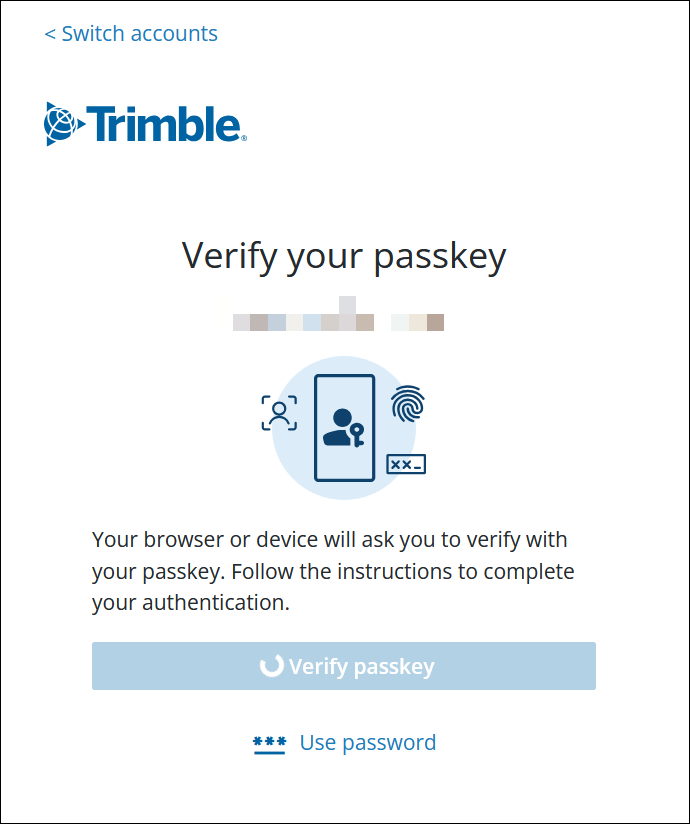
Trimble recommends setting up a passkey as the preferred Multi-Factor Authentication (MFA) method for your Trimble ID account. Passkeys are encrypted digital keys generated by your device using your fingerprint, Face ID, or PIN. They offer a more secure and convenient alternative to passwords and traditional two-factor authentication.
Setting Up a Passkey
When you first create a Trimble ID, you are prompted to create a passkey. If you skipped this step, you can always create a passkey at myprofile.trimble.com. To create a passkey follow these steps:
- During account creation, or while on your profile page, click Create a Passkey.
Enter your password. The passkey page will appear.

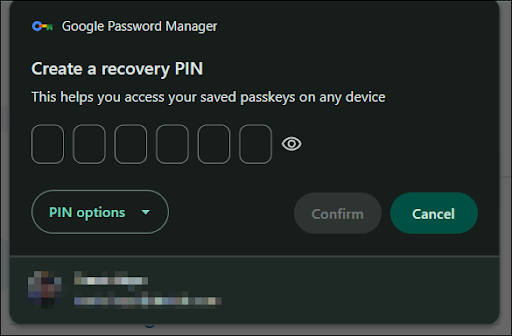
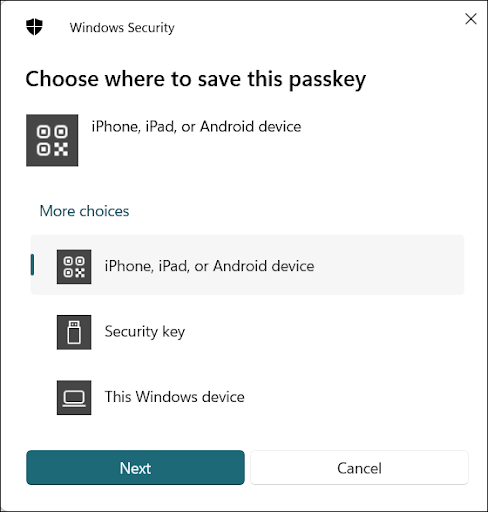
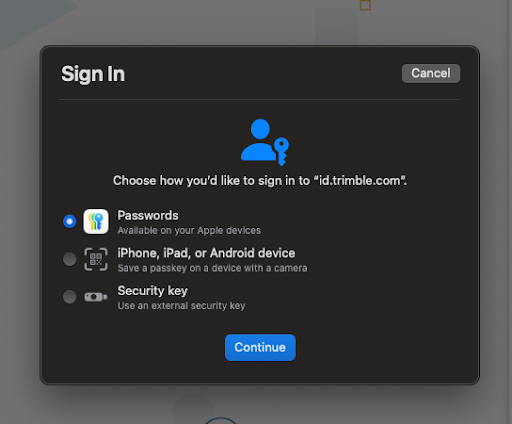
Choose from the available passkey options based on your device or browser. Here are a few examples of what you may see:
Google
Windows
MacOS
- Follow the prompts from your browser or device to create and save the passkey.
- Enter a name for your passkey and select Continue.
- Select Done.
- To edit a passkey’s name, select Edit (
 ) next to the passkey, enter a new name, and select Save.
 - To remove a passkey, select the X to the right of the passkey, enter your current password and passkey, then select Remove.
Logging In with a Passkey
After creating your passkey you can then select Use a Passkey on the login screen to access your Trimble account. A prompt will appear asking for your passkey.