Guide lines are temporary dashed lines you can use as guides to help as you draw. These lines do not interfere with regular geometry. Guide points are standalone points you can use as inferences.
Creating Guides
To create a guide line with the Tape Measure:
- Activate the Tape Measure.
- (Optional) Press CTRL to make sure the Tape Measure cursor is in Create Guide Line mode (
 ).
). - Click on a point on an entity parallel to where you want your guide line.
- Move your cursor perpendicular to where you clicked.
- For a more precise distance, enter a value in the Measurements Box and press Enter.
- Click again to create your guide line.
To create a guide point with the Tape Measure:
- Activate the Tape Measure.
- (Optional) Press CTRL to make sure the Tape Measure cursor is in Create Guide Point mode (
 ).
). - Click anywhere in the modeling window to set your guide point.
To create a guide line with the Protractor:
- The color of the protractor matches the plane you are starting from. Hover over different parts of your model, or use the arrow keys to pick the plane you want to use when creating a guide. You can hold down the Shift key to lock the protractor to a specific plane.
- Click to set the vertex of the angle you want to use to create a guide line.
- (Optional) Tapping Alt (Microsoft Windows) or Command (macOS) frees the protractor from the inferred plane. The angle of the protractor will remain the angle of the original plane, but now you can move the protractor and inference other geometry.
- Move your cursor to the angle where you want your guide line and click again.
Editing guide lines
To reorient a guide line or guide point, you can move or rotate it. See Moving Entities Around and Flipping and Rotating for details.
Hiding and erasing guide lines
Guides are temporary aids for building a portion of your model. Keeping too many guides in your model can affect SketchUp’s performance. To help maintain both performance and inference accuracy, you may want to hide guidelines as you work or delete all guidelines after you finish your 3D model.
To hide guidelines, you can use either of the following methods:
- Activate the Select tool (
 ), select one or more guides, and then select Edit > Hide.
 - Context-click a selected guide and select Hide.
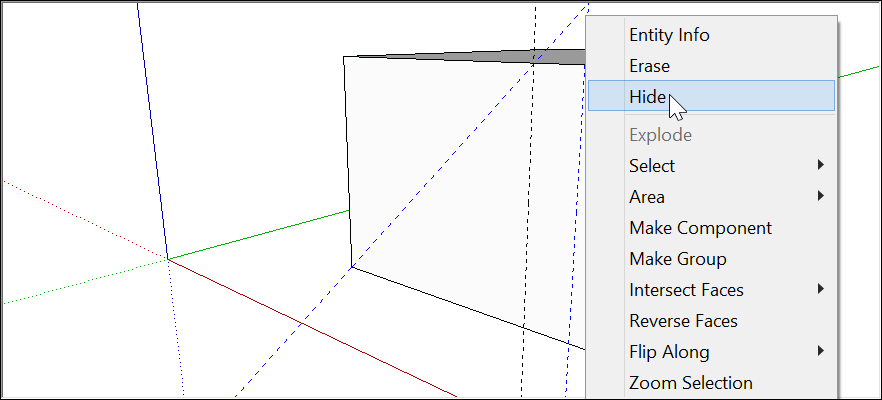
To make hidden guides visible again, select Edit > Unhide and choose an option from the Unhide submenu or select Unhide from the context menu.
Deleting guides permanently removes them. To delete your guides:
- With the Select tool (), select one or more guides and then select Edit > Delete.
- Context-click a guide and choose Erase.
- Click a guide line with the Eraser tool.
- Select Edit > Delete Guides to erase all guides.