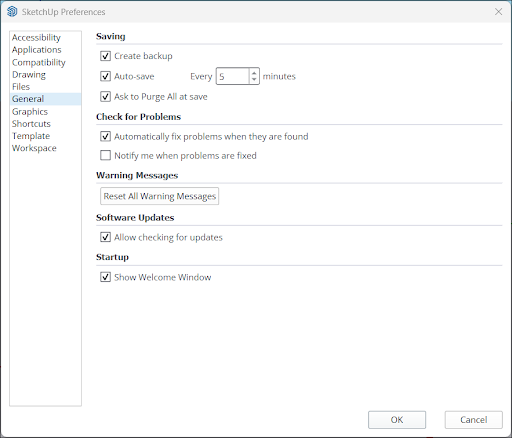
The General tab contains a few different categories, each with options that adjust SketchUp’s basic functionality.
Saving
Saving provides the following file management options:
- Create Backup is enabled by default. When enabled, SketchUp automatically creates a backup file of the previous saved version of a model anytime you create a new save. Backup files use the .skb file type on Windows, add a ~ in the file name on Mac, and save in the same location as the .skp file. A backup will not be created until the second time you save a model.
- Auto-save is enabled and set to 5 minutes by default. At the designated interval, SketchUp will save all changes to your model in a temporary file. These temporary files will persist after crashes and will appear as Recovered in the Welcome window. SketchUp deletes temporary files when you manually exit SketchUp. Auto-save does NOT automatically save to the same file you opened, and is no substitute for saving early and saving often.
- Ask to Purge All at save is enabled by default. As you model, you may end up having a lot of unused entities in your model. Even when deleted, the definition for these entities remains and can add to your model’s file size, affecting performance. When enabled, SketchUp will ask you each time you manually save your model if you want to purge all unused entities.
Check for Problems
Check for Problems tells SketchUp what to do when a problem occurs with your model:
- Automatically Fix Problems When They Are Found is enabled by default. SketchUp will check for problems anytime you open a model, when auto-saving, or when you manually save a model.
- Notify Me When Problems Are Fixed is not enabled by default. When selected, anytime SketchUp fixes an error, a warning message will appear letting you know that your model has been updated.
Warning Messages
Performing certain actions may cause a warning message to appear. Each message contains an option that tells SketchUp not to show that particular message again. Clicking Reset All Warning Messages will cause these messages to appear as if it were the first time they are triggered.
Software Updates
Allow Checking for Updates is enabled by default. When enabled, this option tells SketchUp to check for updates anytime you are connected to the internet.
Startup
Show Welcome Window is enabled by default. This option tells SketchUp to open the Welcome Window at startup. The Welcome Window can help you find your recovered files if SketchUp crashes, make it easier to choose a new template, and access your recently modified files. You can always access the Welcome Window by going to Help > Welcome to SketchUp.