You can create and edit shortcuts in the Shortcuts section of Preferences. There are a few limitations to what you can do with shortcuts, so here are some guidelines to help you understand what you can and can’t do:
- You can’t start with a number. Numbers are reserved for some very specific commands or for adjusting measurements.
- You can use modifier keys. Shift, Alt, and Ctrl can all be used in combination with other inputs.
- You can’t use shortcuts reserved by your operating system. If you try to use a shortcut already in use by your OS, SketchUp will let you know.
- You can reassign existing default shortcuts. SketchUp assigns shortcuts to a few commands by default. You can always change these default shortcuts to something that works better for you.
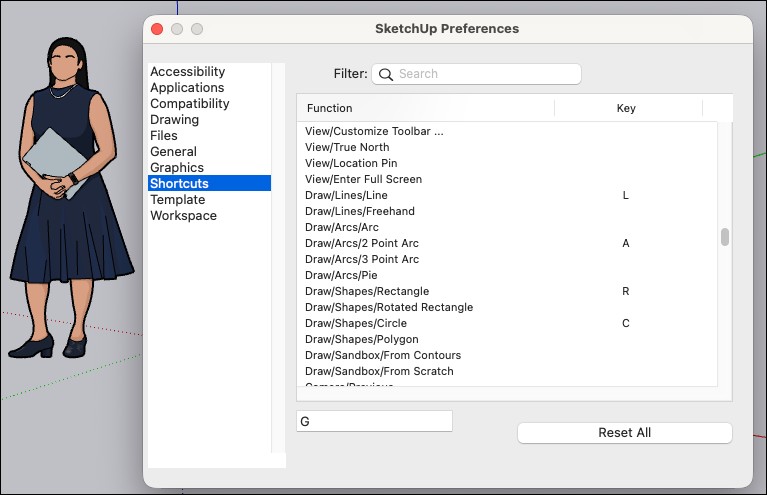
The Shortcuts section of Preferences contains a table with a full list of every command or tool you can assign a shortcut to. The Function section displays the name of the tool or command. If a command or tool has a shortcut assigned to it, you’ll see that shortcut under Assigned (Windows) or Key (MacOS).
You can use the search bar at the top to find a specific command, or enter a keyword to filter what you see in the Function section. For example, typing “zoom” filters the list down to Camera/Zoom, Camera/Zoom Extents, Camera/Zoom to Photo, and Camera/Zoom Window.
To create or edit a shortcut:
- Find the command you want to assign a shortcut.
- Select that command to highlight it.
- If the selected command already has an assigned shortcut, that shortcut appears under Assigned (Windows) or Key (MacOS).
Type the shortcut you want to assign to the command in the Add Shortcut box (Windows), or the text box in the lower-left of the panel (MacOS).
Caution: Do not hit Enter. This will erase the entered value.- (Windows Only) Click the + to add your shortcut.
- If the shortcut you enter is already assigned to another function, a warning will appear. Click Keep Original to continue, or Replace to save the new shortcut.
- Repeat these steps until you’ve assigned all the shortcuts you want.
To reset all shortcuts to the default settings, click Reset All.