SketchUp for Web’s App Settings provides a few options to help you fine tune your experience. To open the App Settings window, click the Menu ( ), then click App Settings.
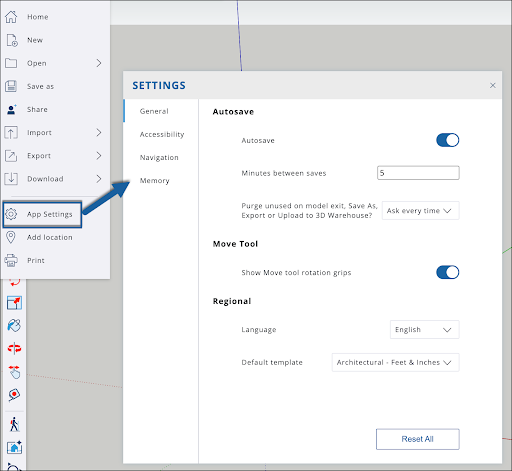
App Settings contains the following sections – General, Accessibility, Navigation, and Memory. Any changes you make to these settings can be reverted using Reset All at the bottom of the window.
The General section contains the following options:
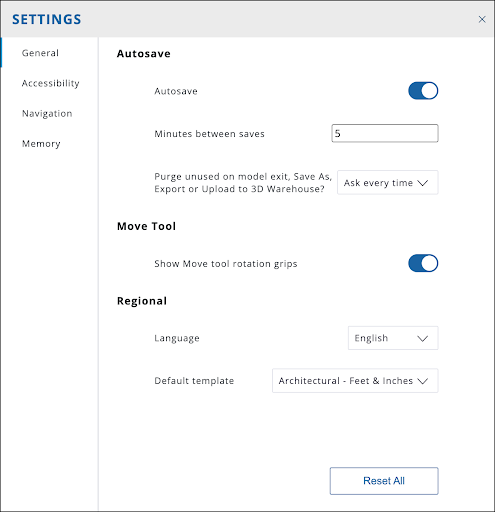
- Autosave – SketchUp for Web’s autosave options. You can enable or disable autosave, set how often autosaves occur, and set how often you will be asked to purge unused assets when exiting, saving, or exporting your model.
- Move Tool – Enable or disable the visibility of the rotation grips when using the Move tool.
- Regional – Set the language and template SketchUp for Web will use.
Accessibility provides options to help you set specific colors for the axis or inferences.
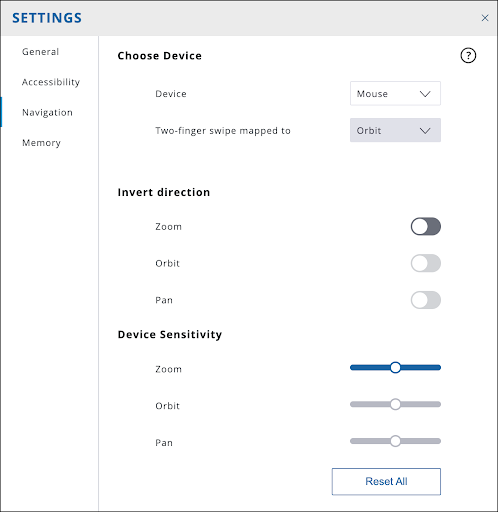
The Navigation section contains the following options:
- Choose Device – You can choose between using a mouse or trackpad. When the trackpad is selected, you can also set what tool is associated with a two-finger swipe.
- Invert Direction – Use the toggles to invert the direction of navigation when using the Zoom, Orbit, or Pan tools.
- Device Sensitivity – Adjust the sliders to customize how reactive the Zoom, Orbit, and Pan tools are.
The Memory section provides the following options:
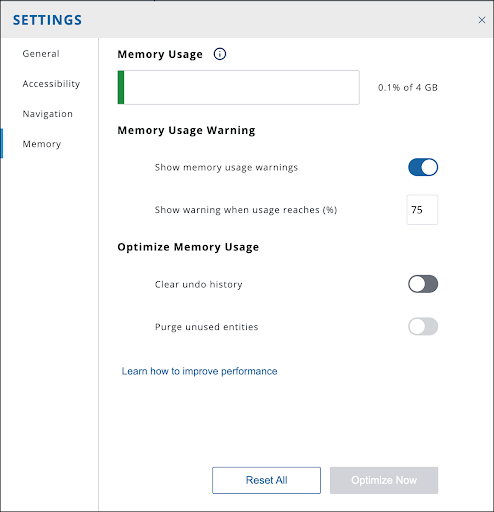
- Memory Usage – A meter showing how much memory SketchUp for Web is using.
- Memory Usage Warnings – Show or disable warnings about memory usage. You can also set the percentage of memory usage when those warnings will appear.
- Optimize Memory Usage – Purge Unused Entries is only available if Clear Undo History is toggled on. Once one or both options are toggled on, you can click Optimize Now to free up memory.