The SketchUp for Web Materials panel is where you can find, manage, and create materials for use in your SketchUp models.
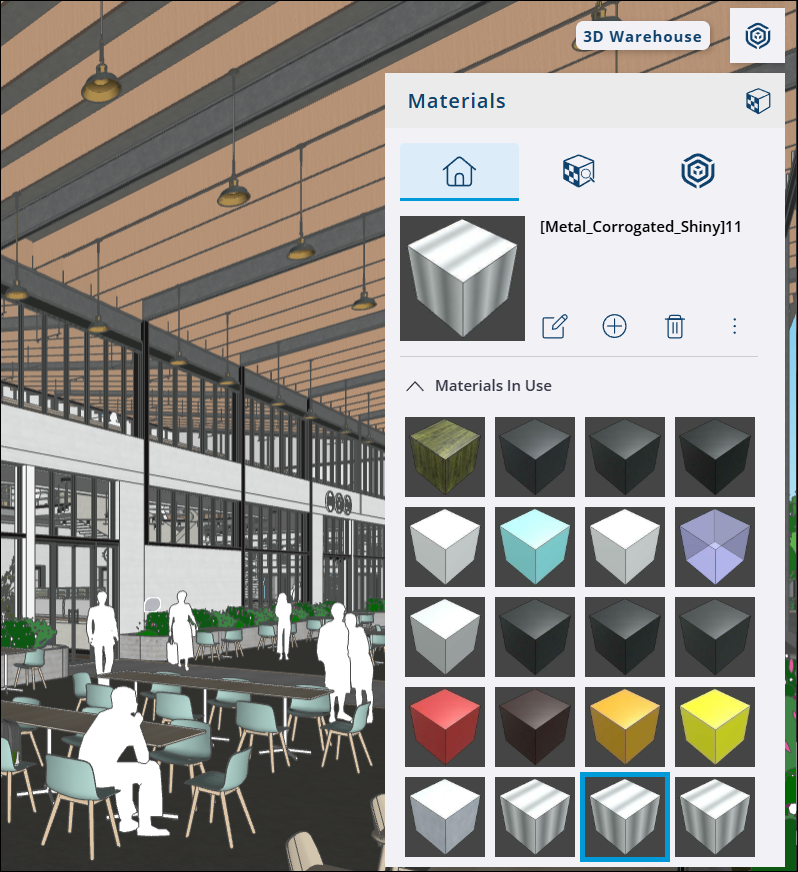
When you first open the Materials panel on a new model, a few default Materials will appear. For more Materials, click Browse ( ) to see a list of default Material categories to choose from, or you can click 3D Warehouse (
 ) to find even more Materials you can download. As you add Materials to your model, they will appear under Materials in Use in the Materials Panel.
For more information on using Materials in your models, see Materials, Textures, and Environments.
Working with Photorealistic Materials
The SketchUp for Web WebGPU graphics engine supports Materials with Physically Based Rendering (PBR) texture maps. Materials with the Metalness, Roughness, and Normal photorealistic texture maps can simulate design elements like textured paint or a stained wood finish. Photorealistic materials cannot be used with the Classic graphics engine.
Tip: Using Materials with PBR texture maps in combination with the Photoreal Materials face style can show even more details of a material. For more information on using face styles, see Styles in SketchUp for Web.
Some default SketchUp Materials and those you find in 3D Warehouse may already have PBR texture maps. You can also import .skm files with PBR data if you have one. If a Material doesn’t have texture maps, SketchUp can help you generate them automatically, or you can ask SketchUp to generate textures using AI.
If you want SketchUp to automatically generate texture maps, open Settings and enable Automatically Enhance Materials in the Graphics section.
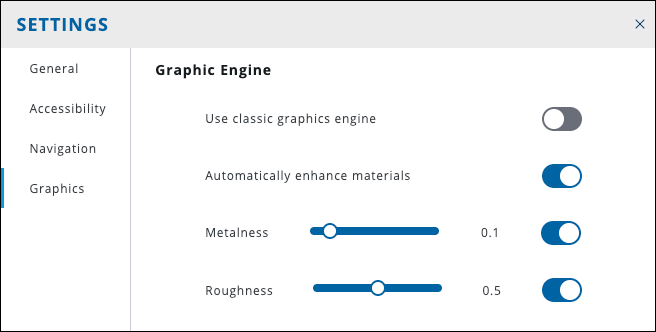
You can then use the sliders provided to set the default Roughness and Metalness values SketchUp will use to add texture maps.
If you want to use AI to generate texture maps, select an unenhanced Material in the Materials panel and click Edit ( ). The Generate Textures (
 ) option will appear in the Material’s preview image.
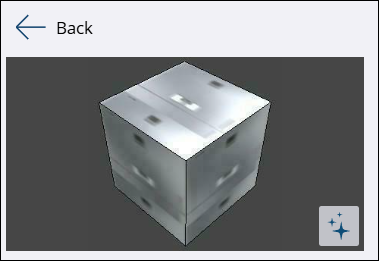
Clicking Generate Textures prompts SketchUp to create texture maps for the Material using SketchUp AI. For more information on how this works, see Generate Textures.
Editing Photorealistic Materials
If you need to alter a PBR Material, SketchUp provides options that help you edit a Material’s texture maps. When editing a Material, an adjustable slider along with an on/off toggle appears for each associated texture map.

Turning the toggle to the off position disables that texture map. Adjusting the slider changes the impact that texture map has on the Material.
For more details on editing Materials, see Editing Materials.