Styles in SketchUp are a great way to help you convey information about your model without saying a word. A Style is a collection of specific settings for edges, faces, and backgrounds. A Style with pencil-drawn edges and a fuzzy color scheme can suggest your model is still a work-in-progress, while a more formal model will use colors and settings that can help make your model more photo-realistic.
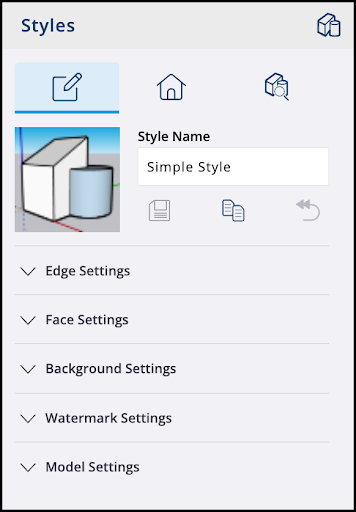
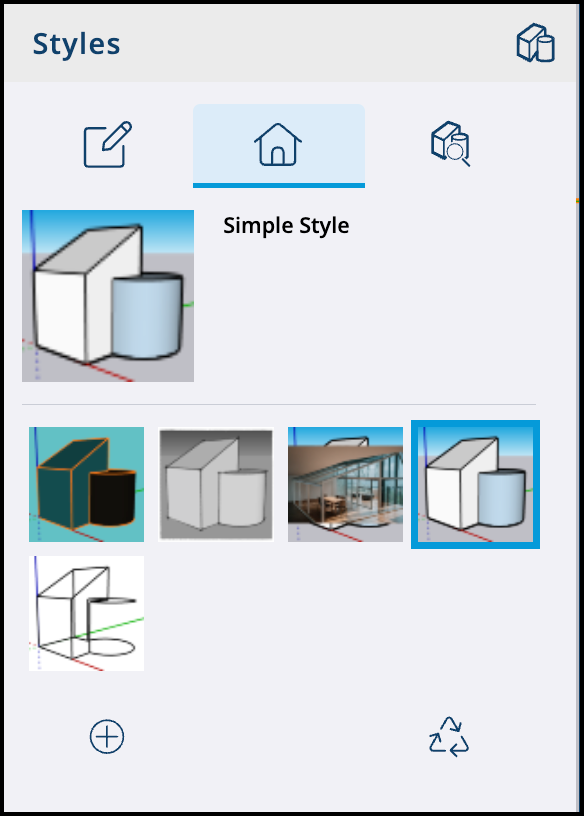
In SketchUp for Web, the Styles panel contains many of the same options you’ll find in SketchUp for Desktop. When you first open the Styles Panel, you’ll see three tabs – Edit Style, In Model, and Browse.
Edit Style
From the Edit Style tab, you can adjust the following settings:
- Edge Settings – Options that apply a different look to the edges in your model. For more information, see Edge Styles.
Face Settings – Options that can change how faces appear in your model. In SketchUp for Web, subscribers can also adjust the distance and intensity values for Ambient Occlusion. See Face Styles for more details.
- Background Settings – Options for sky, horizon, and ground settings. For more information, see Customizing a Model's Background with Styles.
- Watermark Settings – Options allowing you to add a watermark. For more information, see Customizing a Model's Background with Styles.
- Model Settings – Options that change the color of modeling cues like guides and axes.
In Model
The In Model tab shows each style you’ve added to your model and allows you to add, remove, or switch between them.
Browse
The Browse tab is where you can find and add predefined styles to your model from the following categories:
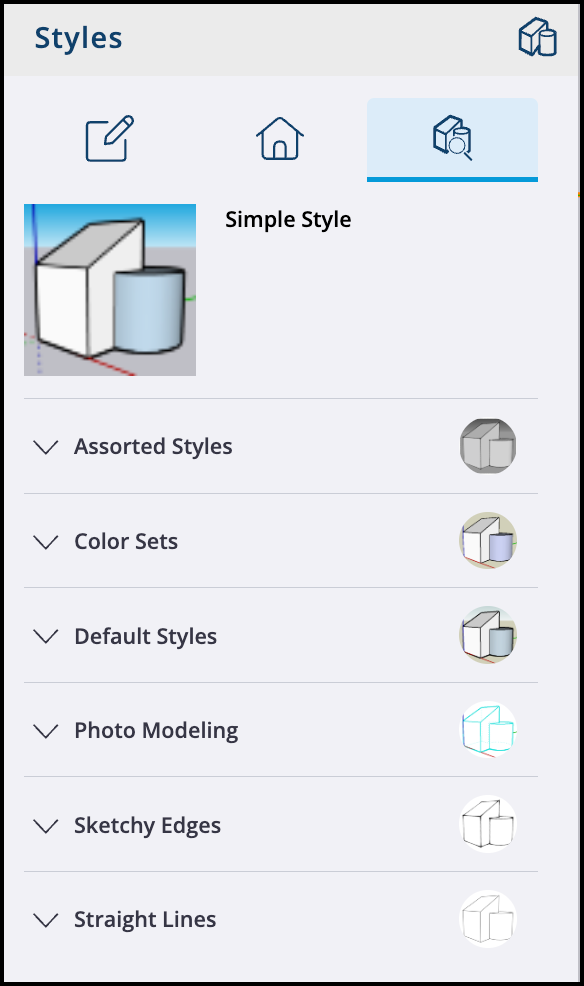
- Assorted Styles
- Color Sets
- Default Styles
- Photo Modeling
- Sketchy Edges
- Straight Lines
For more information about each predefined style category, see Choosing a Style.