SketchUp’s AI tools can help enhance your workflows and designs. Using these tools to generate output uses SketchUp AI Credits. These credits represent the cost of the computational power each tool uses.
Each SketchUp subscription tier includes a set number of credits you can use each month:
- Free – No credits are included with a free subscription.
- Go – 100 credits per month
- Pro – 150 credits per month
- Studio – 200 credits per month
If you need more credits than your subscription provides, you can add on a SketchUp AI subscription that gives you access to an additional 1500 monthly credits. For more information, see SketchUp AI Subscription.
When using SketchUp’s AI tools, you can see the number of available credits in the Credits section of the interface. The cost to use each tool appears on the Generate button.

AI credits can be used on all SketchUp platforms. That means you’ll use the same credits and see the same total available credits when using AI features on desktop, iPad, or web. Once a month and corresponding with your renewal date, your credit balance will reset to the full amount included with your subscription. Unused credits do not carry over to the next month.
Credits in AI Render
Generating output with AI Render costs 5 credits.
That means each time you generate output with a text prompt or one of AI Render’s tools like Sketch, Paint, or Erase, 5 credits will be deducted from your total. Credits are only deducted when output images are added to your Gallery. If for any reason output generation fails to complete, credits won’t be deducted.

You can check your AI Credit total at any time by clicking Credits in the upper right of the AI Render interface.
Credits in AI Assistant
AI Assistant offers two AI features – Help and Generate Object. Help does not require credits and is free to use for all SketchUp subscribers. Generate Object costs 30 credits.
That means each time you generate an object from an image with Generate Object, 30 credits will be deducted from your total. Credits are only deducted when an object is generated and is available in the Gallery inside of AI Assistant. If for any reason output generation fails to complete, credits won’t be deducted.
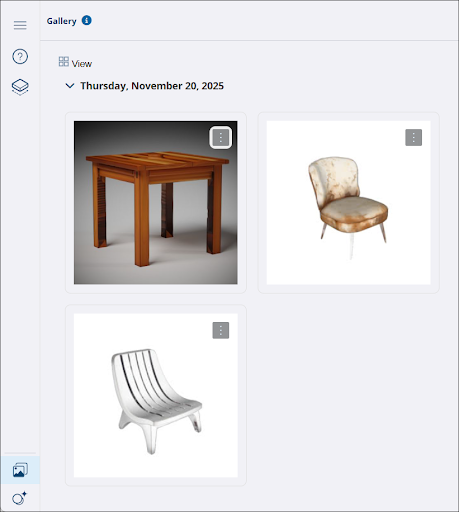
You can check your AI Credit total at any time by clicking Credits in the lower left of the AI Assistant interface.