SketchUp Daylight Analysis helps visualize and quantify the daylight performance of your SketchUp models. You can quickly extract results from even unstructured models to help:
- Check how well your design is performing against typical daylight metrics
- Compare the daylight performance of different design options
- Produce visualization with heat maps that are suitable for presentations or reporting
- Output summary reports to support compliance submissions
To get started, download the Daylight Analysis extension in Extension Warehouse. After you install the extension, you can open it by clicking Extensions > SketchUp Daylight Analysis. It also has its own toolbar you can add from the View > Toolbars dialog.
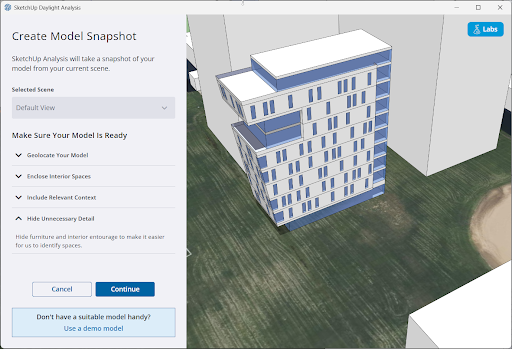
Before you use Daylight Analysis, SketchUp will ask you to make sure you have:
- Geolocated your model using Add Location.
- Enclosed any interior spaces
- Included any relevant context like surrounding buildings or terrain
- Hidden any unnecessary details like furniture or interior design elements
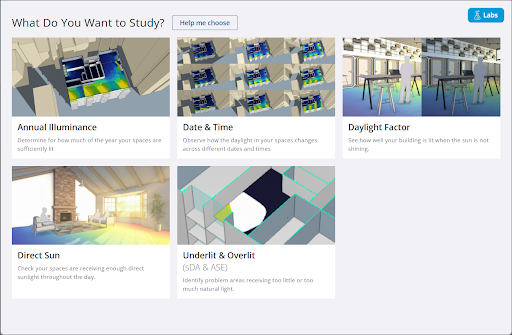
Once your model is ready, you can ask SketchUp to help you choose which type of study you want to initiate, or choose from the following options:
- Annual Illuminance – Reports point illuminance values derived from calculating location-specific and climate-specific daylighting over the course of a year.
- Date & Time – Assesses location-specific daylighting for a specific hour, day, and month. Assumes a clear sunny sky.
- Daylight Factor – Assumes a uniform cloudy sky, and reports daylighting as a ratio of indoor illuminance to outdoor illuminance.
- Direct Sun – Considers only direct beam solar radiation and illustrates where on the horizontal workplane there is direct sunlight for a user-specified period of time.
- Underlit & Overlit – Uses Annual analysis data and reports areas across the horizontal workplane where there is either too much direct sunlight or where there is adequate daylighting.
After selecting the type of analysis you would like to do, SketchUp will prepare your model by checking if the model is ready. For large models this can take a few minutes. When SketchUp is finished checking your model, click Finish to open the analysis window.
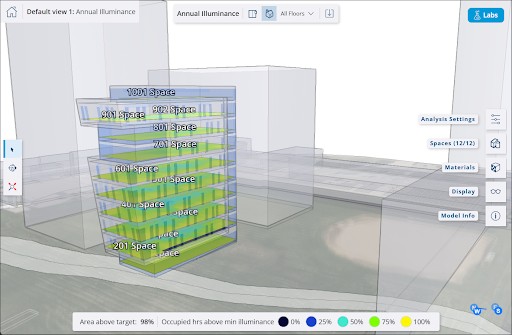
SketchUp will analyze your model based on the default settings for that analysis mode. If you want to adjust those settings, open the Analysis Settings panel. You can also use the other panels to manage spaces in your model, view materials, manage entity visibility, or review the model’s basic information.