Keyboard shortcuts let you customize LayOut to work more efficiently. Through the Shortcuts section of the LayOut Preferences dialog box, you can:
- View LayOut commands and shortcuts
- Find specific commands
- Add or edit a shortcut
- Delete shortcuts

LayOut includes the following default shortcuts:
| Action | Shortcut |
|---|---|
| Enable Draft Mode | V |
| Pan | H |
| Zoom Window | Z |
| Zoom to Page | P |
| Bring Forward | + |
| Send Backward | - |
| Select | Space |
| Erase | E |
| Move | M |
| Scale | S |
| Rotate | Q |
| Style | B |
| Line | L |
| 2-Point Arc | A |
| Rectangle | R |
| Circle | C |
| Offset | F |
| Fillet | Shift+F |
| Chamfer | Shift+C |
| Trim | Shift+T |
| Extend | Shift+E |
| Text | T |
| Linear Dimension | D |
To find a specific command and view its shortcut, start typing in the Filter text box. As you type, LayOut filters the list of commands to match your search.
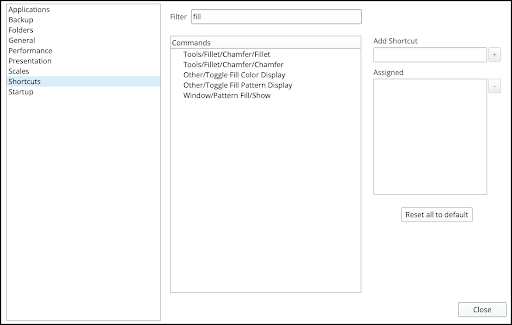
If you want to edit or add a shortcut to a command, follow these steps:
- Find the command for the shortcut that you want to add or edit.
- Click it in the Commands column.
- If the command doesn’t have a shortcut, the text box below the list of commands is blank.
- If there is already a shortcut for the command, the shortcut appears in the text box.
- Click the text box.
Press the exact keystrokes for the shortcut. Only press keys intended for your shortcut. A notification will appear if another command already uses the same shortcut.
Warning: Do not press Enter when creating a shortcut.- On MacOS, no further steps are needed. On Windows, click the plus sign (+) next to the text box to save the shortcut.
To remove an assigned keyboard shortcut, select it in the list box. Windows users must click the minus sign (-) to remove the listed shortcut. MacOS users can just press Delete.