The Trimble Admin Console can help you add licenses to your account’s SketchUp subscriptions. Each license provides access to the products in that subscription to a user. Only an Account Owner or Secondary Account Owner can add licenses.
See Refunds and Cancellations for more information. If you need help, please contact the SketchUp support team for assistance.
Note: Each product license is intended for use by a single named user, a real person using their first name, last name, and email address, for the duration of the subscription term. The person using a license must match the person assigned to that license when purchasing or renewing a subscription. Single named-user licenses cannot be transferred to another user, but can be updated at specific times. For details see the Trimble User Assignment and Device Management Policy.
To add licenses, open the Admin Console and follow these steps:
- In the left navigation bar, click Products & Licenses.
Select the SketchUp subscription that you want to add licenses to.
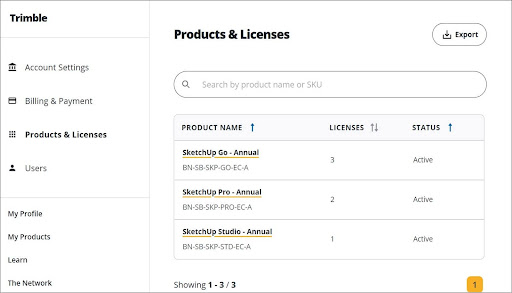
Click Manage Subscription.

Click Manage to show additional subscription management options.
Note: If you click Close, these options will no longer appear.
Click Add licenses.
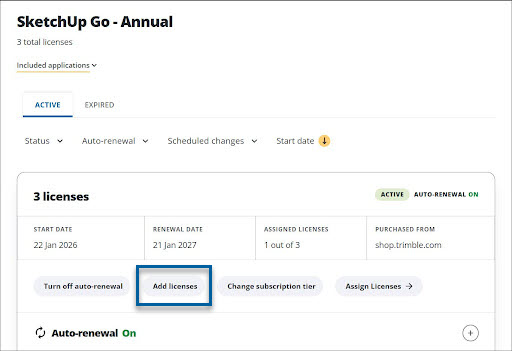
Specify the number of licenses to add.

Click Continue to checkout to pay the prorated amount for your new licenses
Note: The new licenses will automatically have the same term (monthly or annual) and renewal date as the subscription. You will only be charged a prorated amount for the remainder of the current subscription.